34.7 发布桌面程序(WinForm/WPF)
以下内容仅限 Furion 4.8.7.28 + 版本使用。
Furion 框架灵活的架构模式使得 Web 和各客户端(WinForm/WPF/Console) 项目之间迁移变得非常简单,只需要极少数修改即可实现无缝迁移。
通过这种方式可以实现类似前端的 Electron/Tauri 混合式开发。
本章节提供如何将 Web 项目发布(迁移)到 WinForm/WPF 中,同样也适合控制台应用程序。
34.7.1 迁移步骤
34.7.1.1 创建 WinForm/WPF 项目
通过 Visual Studio 创建 WinForm/WPF 项目,同样适合控制台项目。
34.7.1.2 初始化 WinForm/WPF 配置
WinForm初始化
namespace WinFormsApp1;

internal static class Program
{
    [STAThread]
    private static void Main()
    {
        Serve.RunNative(RunOptions.Default);    // 默认 5000 端口,如果出现占用,推荐使用下面的方式
        // Serve.RunNative(RunOptions.Default, Serve.IdleHost.Urls);   // 随机端口

        ApplicationConfiguration.Initialize();
        Application.Run(Native.CreateInstance<Form1>());
    }
}
默认情况下,通过 WinForm 启动 Web 主机环境总是为 Production,但在开发阶段可能会出现配置加载错误问题,这时只需要添加 ConfigureOptions 配置即可,如:
Serve.RunNative(RunOptions.Default
     .ConfigureOptions(new WebApplicationOptions
    {
        // Debugger.IsAttached 可判断释放为 Debug 模式
        EnvironmentName = Debugger.IsAttached ? "Development" : default
    }));
WPF初始化
using System.Windows;

namespace WpfApp1;

public partial class App : Application
{
    public App()
    {
        Serve.RunNative(RunOptions.Default);    // 默认 5000 端口,如果出现占用,推荐使用下面的方式
        // Serve.RunNative(RunOptions.Default, Serve.IdleHost.Urls);   // 随机端口
    }

    protected override void OnStartup(StartupEventArgs e)
    {
        Native.CreateInstance<MainWindow>().Show();
        base.OnStartup(e);
    }
}
默认情况下,通过 WPF 启动 Web 主机环境总是为 Production,但在开发阶段可能会出现配置加载错误问题,这时只需要添加 ConfigureOptions 配置即可,如:
Serve.RunNative(RunOptions.Default
     .ConfigureOptions(new WebApplicationOptions
    {
        // Debugger.IsAttached 可判断释放为 Debug 模式
        EnvironmentName = Debugger.IsAttached ? "Development" : default
    }));
34.7.1.3 添加 YourProject.Web.Core 层引用
<ItemGroup>
    <ProjectReference Include="..\Your.Web.Core\Furion.Web.Core.csproj" />
</ItemGroup>
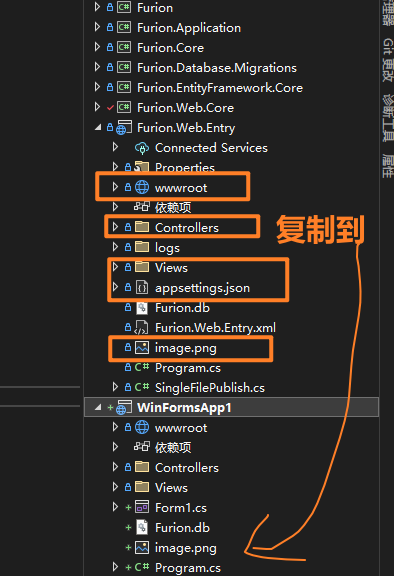
34.7.1.4 拷贝 YourProject.Web.Entry 内容
如果有 YourProject.Web.Entry 启动层包含 *.json 文件、Controllers、Views 、wwwroot 目录则拷贝到 WinForm/WPF 中
34.7.2 配置 WinForm/WPF 项目文件
双击 WinForm/WPF 项目进入 .csproj 文件编辑。
34.7.2.1 修改 Sdk 属性
将 Sdk="Microsoft.NET.Sdk" 修改为 Sdk="Microsoft.NET.Sdk.Razor"
<Project Sdk="Microsoft.NET.Sdk.Razor">
34.7.2.2 添加 MVC/Razor 支持
WinForm
<Project Sdk="Microsoft.NET.Sdk.Razor">

	<PropertyGroup>
		<OutputType>WinExe</OutputType>
		<TargetFramework>net7.0-windows</TargetFramework>
		<Nullable>enable</Nullable>
		<UseWindowsForms>true</UseWindowsForms>
		<ImplicitUsings>enable</ImplicitUsings>
		<SatelliteResourceLanguages>en-US</SatelliteResourceLanguages>
		<PublishReadyToRunComposite>true</PublishReadyToRunComposite>
		<AddRazorSupportForMvc>true</AddRazorSupportForMvc>
	</PropertyGroup>

</Project>
WPF
<Project Sdk="Microsoft.NET.Sdk.Razor">

	<PropertyGroup>
		<OutputType>WinExe</OutputType>
		<TargetFramework>net7.0-windows</TargetFramework>
		<Nullable>enable</Nullable>
		<ImplicitUsings>enable</ImplicitUsings>
		<UseWPF>true</UseWPF>
		<SatelliteResourceLanguages>en-US</SatelliteResourceLanguages>
		<PublishReadyToRunComposite>true</PublishReadyToRunComposite>
		<AddRazorSupportForMvc>true</AddRazorSupportForMvc>
	</PropertyGroup>

</Project>
34.7.2.3 添加 wwwroot 静态发布配置
如果 YourProject.Web.Entry 包含 wwwroot 目录,则添加以下配置,否则跳过。
<ItemGroup>
	<Content Update="wwwroot\**\*">
		<CopyToOutputDirectory>PreserveNewest</CopyToOutputDirectory>
	</Content>
</ItemGroup>
**注:如果发布时并未包含 wwwroot 目录,可将 Update= 改为 Include=。
34.7.2.4 完整配置
完整的配置大概如下:
WinForm
<Project Sdk="Microsoft.NET.Sdk.Razor">

	<PropertyGroup>
		<OutputType>WinExe</OutputType>
		<TargetFramework>net7.0-windows</TargetFramework>
		<Nullable>enable</Nullable>
		<UseWindowsForms>true</UseWindowsForms>
		<ImplicitUsings>enable</ImplicitUsings>
		<SatelliteResourceLanguages>en-US</SatelliteResourceLanguages>
		<PublishReadyToRunComposite>true</PublishReadyToRunComposite>
		<AddRazorSupportForMvc>true</AddRazorSupportForMvc>
	</PropertyGroup>

	<ItemGroup>
		<Content Update="wwwroot\**\*">
			<CopyToOutputDirectory>PreserveNewest</CopyToOutputDirectory>
		</Content>
	</ItemGroup>

	<ItemGroup>
		<ProjectReference Include="..\Furion.Web.Core\Furion.Web.Core.csproj" />
	</ItemGroup>

</Project>
WPF
<Project Sdk="Microsoft.NET.Sdk.Razor">

    <PropertyGroup>
        <OutputType>WinExe</OutputType>
        <TargetFramework>net7.0-windows</TargetFramework>
        <Nullable>enable</Nullable>
        <ImplicitUsings>enable</ImplicitUsings>
        <UseWPF>true</UseWPF>
        <SatelliteResourceLanguages>en-US</SatelliteResourceLanguages>
		<PublishReadyToRunComposite>true</PublishReadyToRunComposite>
        <AddRazorSupportForMvc>true</AddRazorSupportForMvc>
    </PropertyGroup>

	<ItemGroup>
		<Content Update="wwwroot\**\*">
			<CopyToOutputDirectory>PreserveNewest</CopyToOutputDirectory>
		</Content>
	</ItemGroup>

	<ItemGroup>
		<ProjectReference Include="..\Furion.Web.Core\Furion.Web.Core.csproj" />
	</ItemGroup>

</Project>
37.7.3 嵌入 WebView2
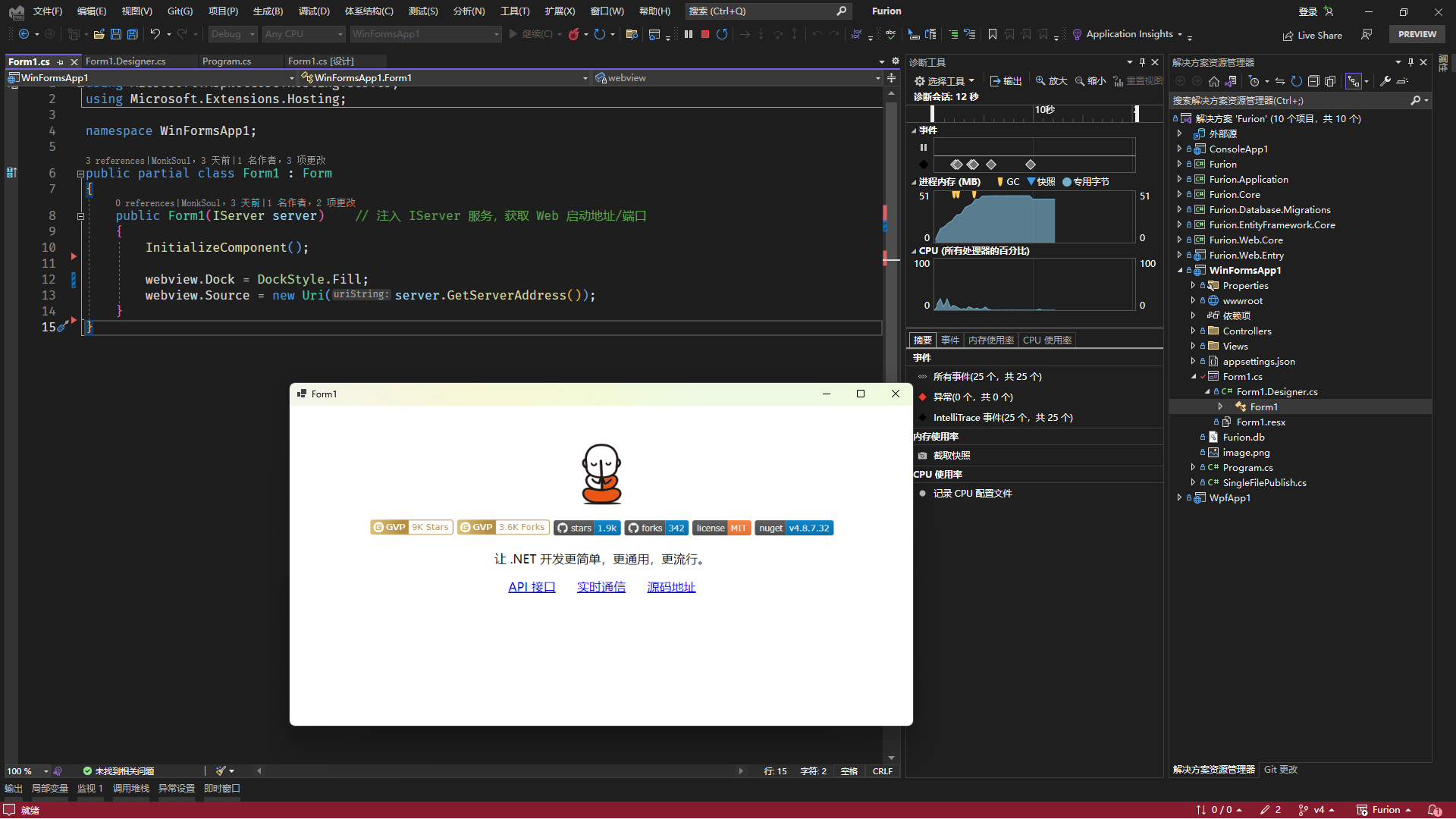
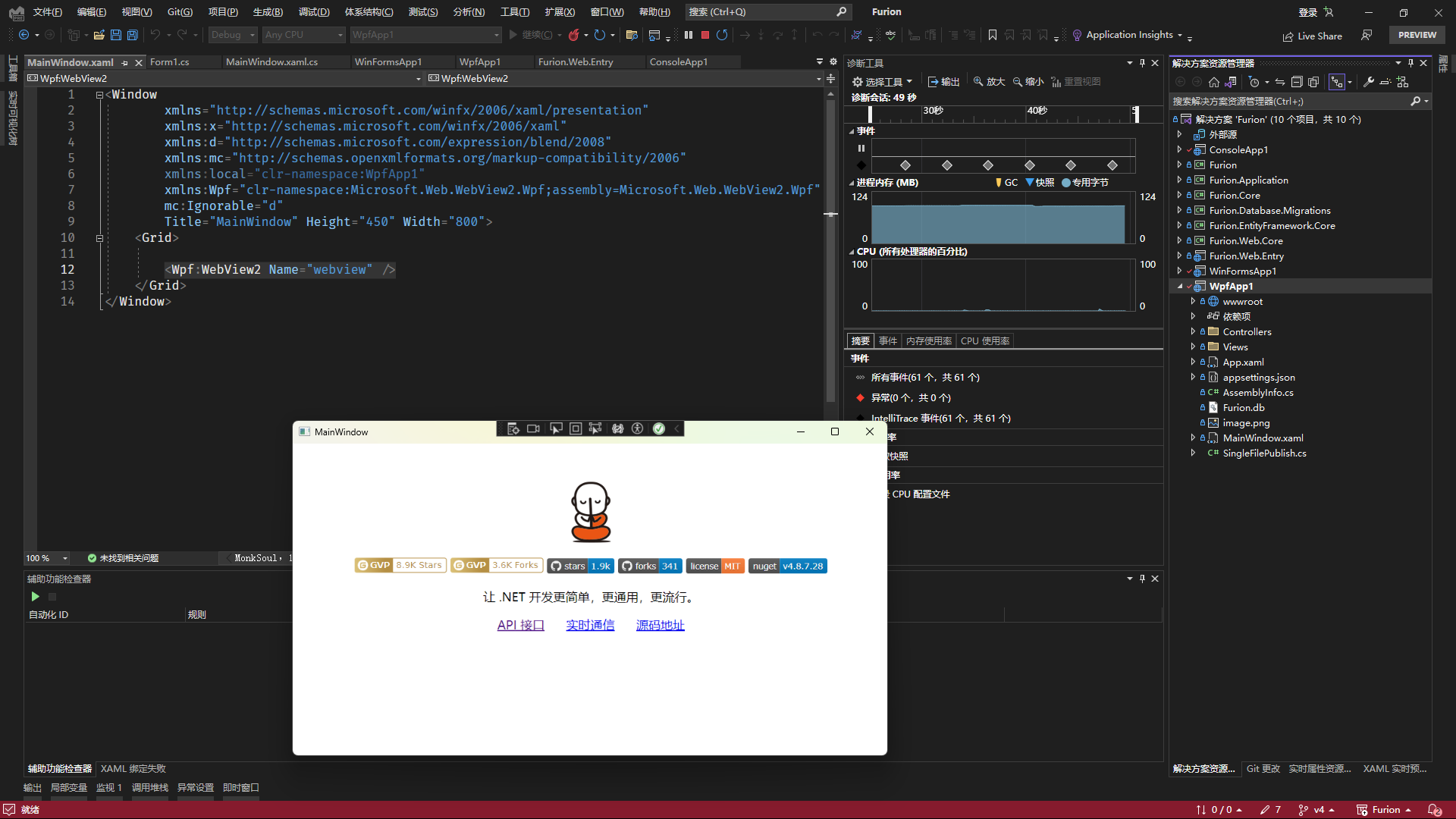
我们可以在 WinForm/WinForm 层添加 Microsoft.Web.WebView2 包,然后在窗口中添加 WebView2 组件,实现类似前端 Electron.js 混合开发。
37.7.3.1 添加 WebView2 扩展
dotnet add package Microsoft.Web.WebView2
Microsoft.Web.WebView2 v1.0.1722.32 版本存在很严重问题(微软错误更新),所以避免安装该版本。
37.7.3.2 添加 WebView2 控件并填充窗口
WinForm
using Microsoft.AspNetCore.Hosting.Server;
using Microsoft.Extensions.Hosting;

namespace WinFormsApp1;

public partial class Form1 : Form
{
    public Form1(IServer server)	// 注入 IServer 服务,获取 Web 启动地址/端口
    {
        InitializeComponent();

        webview.Dock = DockStyle.Fill;
        webview.Source = new Uri(server.GetServerAddress());
    }
}
WPF
<Wpf:WebView2 Name="webview" />
using Microsoft.AspNetCore.Hosting.Server;
using Microsoft.Extensions.Hosting;
using System.Windows;

namespace WpfApp1;

public partial class MainWindow : Window
{
    public MainWindow(IServer server)   // 注入 IServer 服务,获取 Web 启动地址/端口
    {
        InitializeComponent();
        webview.Source = new Uri(server.GetServerAddress());
    }
}
34.7.3.3 预览效果
相关技术文档:
- https://learn.microsoft.com/zh-cn/microsoft-edge/webview2/get-started/winforms
- https://learn.microsoft.com/zh-cn/microsoft-edge/webview2/get-started/wpf
34.7.4 发布 WinForm/WPF
34.7.4.1 启动层添加 SingleFilePublish
通常桌面软件都是发布为不依赖环境(独立发布),所以在启动层添加 SingleFilePublish.cs 文件编辑。
详细教程可查看 【34.5 单文件发布】
using Furion;
using System.Reflection;

namespace WinFormsApp1;

public class SingleFilePublish : ISingleFilePublish
{
    public Assembly[] IncludeAssemblies()
    {
        return Array.Empty<Assembly>();
    }

    public string[] IncludeAssemblyNames()
    {
        return new[]
        {
            "Furion.Application",
            "Furion.Core",
            "Furion.EntityFramework.Core",
            "Furion.Web.Core"
        };
    }
}
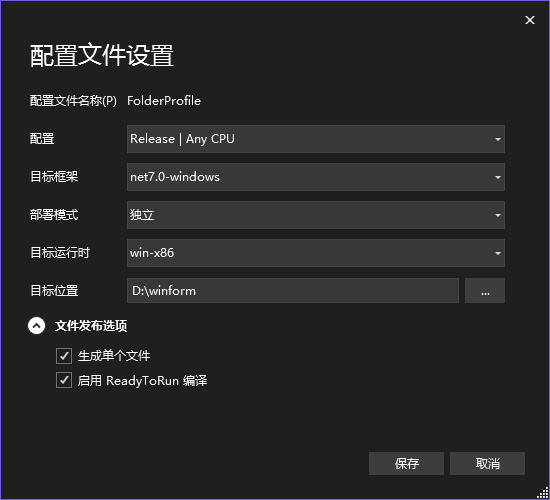
34.7.4.2 发布配置
发布可参考以下配置即可。
相关技术文档:
34.7.5 输出成单个 exe 执行包
默认情况下,发布 WinForm 或 WPF 项目并不会将所有的文件输出为单个 .exe 执行程序,这时候需要配置以下操作:
1. 编辑 WinForm 或 WPF 项目文件 .csproj,在 PropertyGroup 节点中添加 <IncludeAllContentForSelfExtract>true</IncludeAllContentForSelfExtract> 配置。
<IncludeAllContentForSelfExtract>true</IncludeAllContentForSelfExtract>
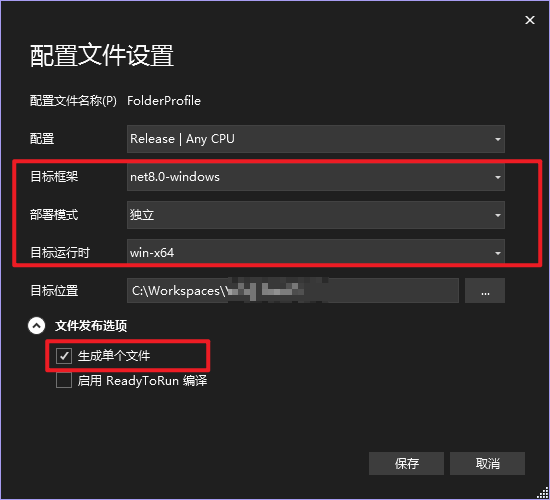
2. 发布时选择输出 独立 模式和 生成单个文件:
3. 设置发布后的 .exe 名称和图标, 编辑 WinForm 或 WPF 项目文件 .csproj,在 PropertyGroup 节点中添加:
<AssemblyName>百小僧</AssemblyName>
<ApplicationIcon>Furion.ico</ApplicationIcon>
那么最终只会生成一个 百小僧.exe 的可执行包。
如果不希望某个文件或者目录打包进去,如 *.json 文件,可添加 <ExcludeFromSingleFile>true</ExcludeFromSingleFile> 进行排除,如:
<ItemGroup>
    <Content Include="appsettings.json">
        <CopyToOutputDirectory>PreserveNewest</CopyToOutputDirectory>
        <ExcludeFromSingleFile>true</ExcludeFromSingleFile>
        <CopyToPublishDirectory>PreserveNewest</CopyToPublishDirectory>
    </Content>
</ItemGroup>
34.7.6 打包成 exe 或 msi 安装包
通过 Visual Studio 安装 Visual Studio Installer Projects 扩展即可。https://marketplace.visualstudio.com/items?itemName=visualstudioclient.MicrosoftVisualStudio2017InstallerProjects
34.7.7 将 WebView2 打包进源码中
默认情况下,集成 WebView2 的软件都会在第一次运行的时候下载 WebView2 Runtime 运行环境,但 WebView2 从 110 版本之后就不再支持低版本的操作系统(但 109 及以下版本是支持的),如 Windows7/8,Windows Server 2008/2012 等。
所以,在没有联网的情况下,或者在低版本操作系统中运行依赖了 WebView2 的软件将会出错闪退。
这时候我们就可以采用下载固定版本的 .cab 包,然后通过解压工具解压出来,之后在您的项目中创建一个 libs 文件夹,将解压后的内容全部放进项目启动层中(特定版本包下载地址:https://github.com/westinyang/WebView2RuntimeArchive/releases)。同时编辑启动层项目 .csproj 文件并将 libs 包含并输出到发布目录。如:
<ItemGroup>
    <Content Include="libs\**\*">
        <CopyToOutputDirectory>PreserveNewest</CopyToOutputDirectory>
    </Content>
</ItemGroup>
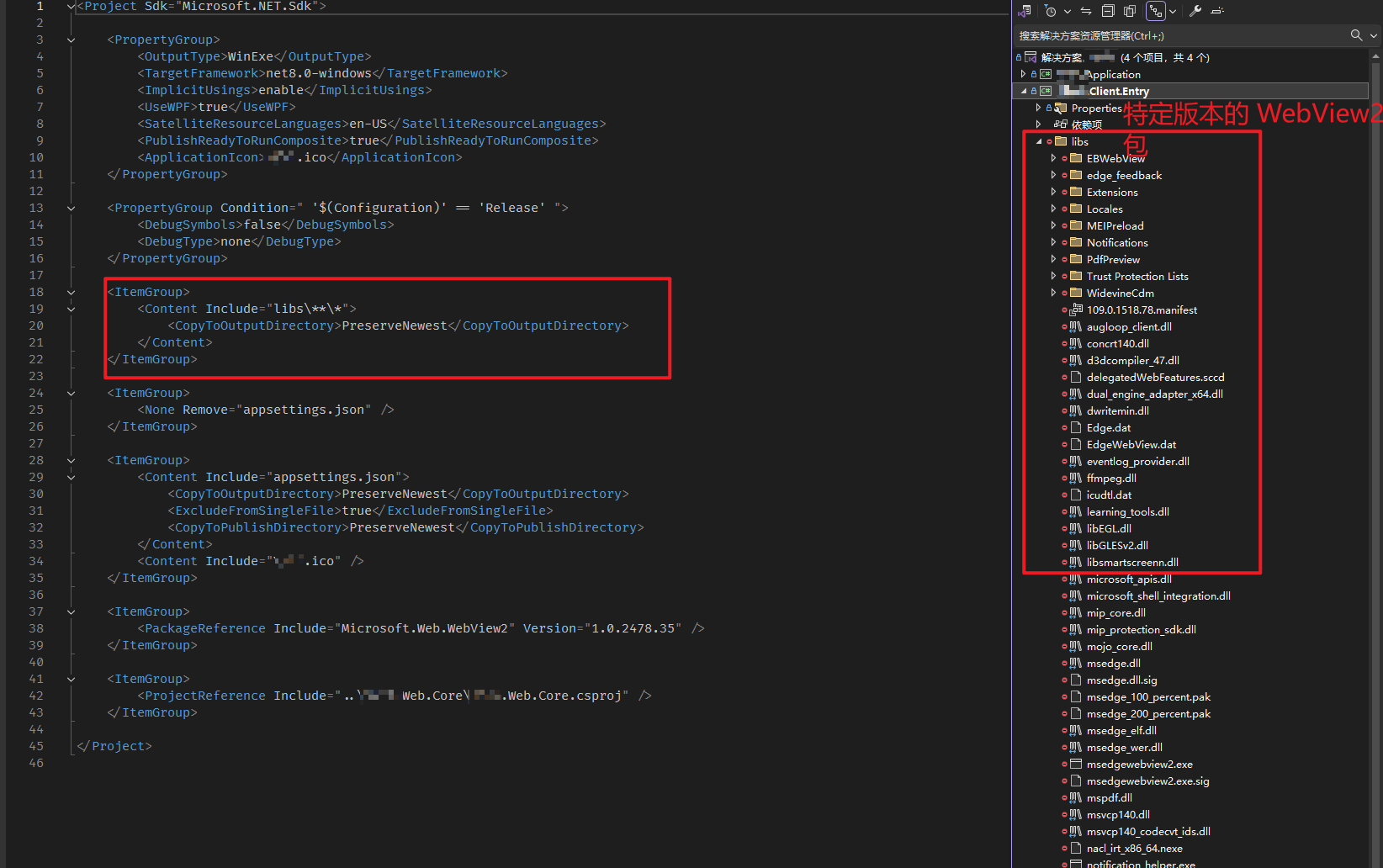
之后通过 webView.EnsureCoreWebView2Async 加载本地 WebView2 版本环境。
var webviewEnv = await CoreWebView2Environment.CreateAsync(Path.Combine(AppDomain.CurrentDomain.BaseDirectory, "libs"));
await webView.EnsureCoreWebView2Async(webviewEnv);

webView.Source = new Uri("https://furion.net");
这样软件第一次打开的时候不会去联网下载了。而且还可以将 109 及以下版本的 WebView2 Runtime 包打包在软件中,这样软件便能在低版本的 Windows 操作系统中运行。
34.7.8 反馈与建议
给 Furion 提 Issue。